Project setup
This guide explains how to run a minimal Asv.Avalonia application. After setup, you can explore the Test Drive section to learn how to customize application's pages.
This guide assumes that you are already familiar with the basics of Avalonia UI.
Prerequisites
This project depends on Avalonia UI, so please review the Avalonia requirements.
The current version of Asv.Avalonia targets .NET 10.0. The framework is cross-platform, so it supports Windows, macOS, Linux, and mobile (Android/iOS).
Choosing an Editor
We recommend using JetBrains Rider with the AvaloniaRider plugin. Read more in the Avalonia IDE Setup guide.
Creating a project
First, create a project for the application and add Avalonia to it. There are two ways to do this:
Use an Avalonia template (recommended and described below) by following this guide.
Manual Setup: create an empty project and add Avalonia manually.
For this guide, we will use the "Avalonia .NET App" template. First, install the templates:
Then, create a new project:
This creates an AsvAvaloniaTest project using the Desktop-only Avalonia template (avalonia.app).
Adding Asv.Avalonia to the project
To install the Asv.Avalonia library, run the following command in your project directory:
Now we must modify our template to run the Asv.Avalonia shell.
1. Clean up the Template
Since Asv.Avalonia handles the main window logic for us, we do not need the default window files. So we can delete MainWindow.axaml and MainWindow.axaml.cs.
2. Configure Program.cs
We need to set up the application host. Replace the contents of Program.cs with this:
The Main method builds and starts the Avalonia application. After the window closes, it gracefully stops and disposes the AppHost. If anything goes wrong, HandleApplicationCrash logs the error.
In BuildAvaloniaApp, we configure Avalonia and initialize the framework via .UseAsv(...). This call sets up the application host with its DI container and internally integrates the R3 reactive framework. Inside the builder callback you register the framework parts your application needs:
RegisterDefault()enables logging and registers the framework core: the built-in controls and the default set of services (dialogs, themes, hot keys, log reading, single-instance mode, and so on).RegisterDesktopShell()registers the desktop shell — the main window that hosts all application pages — together with its default content: the main menu, the status bar, and the standard pages (Home, Settings, and the Log Viewer).
Grouping Register* methods accept an optional configuration callback; if you don't pass one, the default set is registered. For example, RegisterDefault() can be replaced with EnableLogging().RegisterCore(opt => opt.RegisterServices(...).RegisterControls()) to register only the services you actually need.
3. Configure App.axaml.cs
Now, let's edit the App.axaml.cs code-behind file. Our App class should inherit from AsvApplication:
AsvApplication plugs the view locator into Avalonia's data templates (so views are resolved for view models automatically) and initializes the shell for the current application lifetime (desktop or mobile) — your App class only needs to load the XAML.
4. Configure Styles
Finally, include the Asv.Avalonia styles in your App.axaml file:
Running the app
You can now try running the application. You should see a shell with the home page open. Its tools section contains the standard pages registered by the default shell configuration: Settings and the Log Viewer. Below that is the Device browser — the items section of the home page. The list is empty in this minimal setup; modules (for example, Asv.Avalonia.IO) publish their discovered devices there.
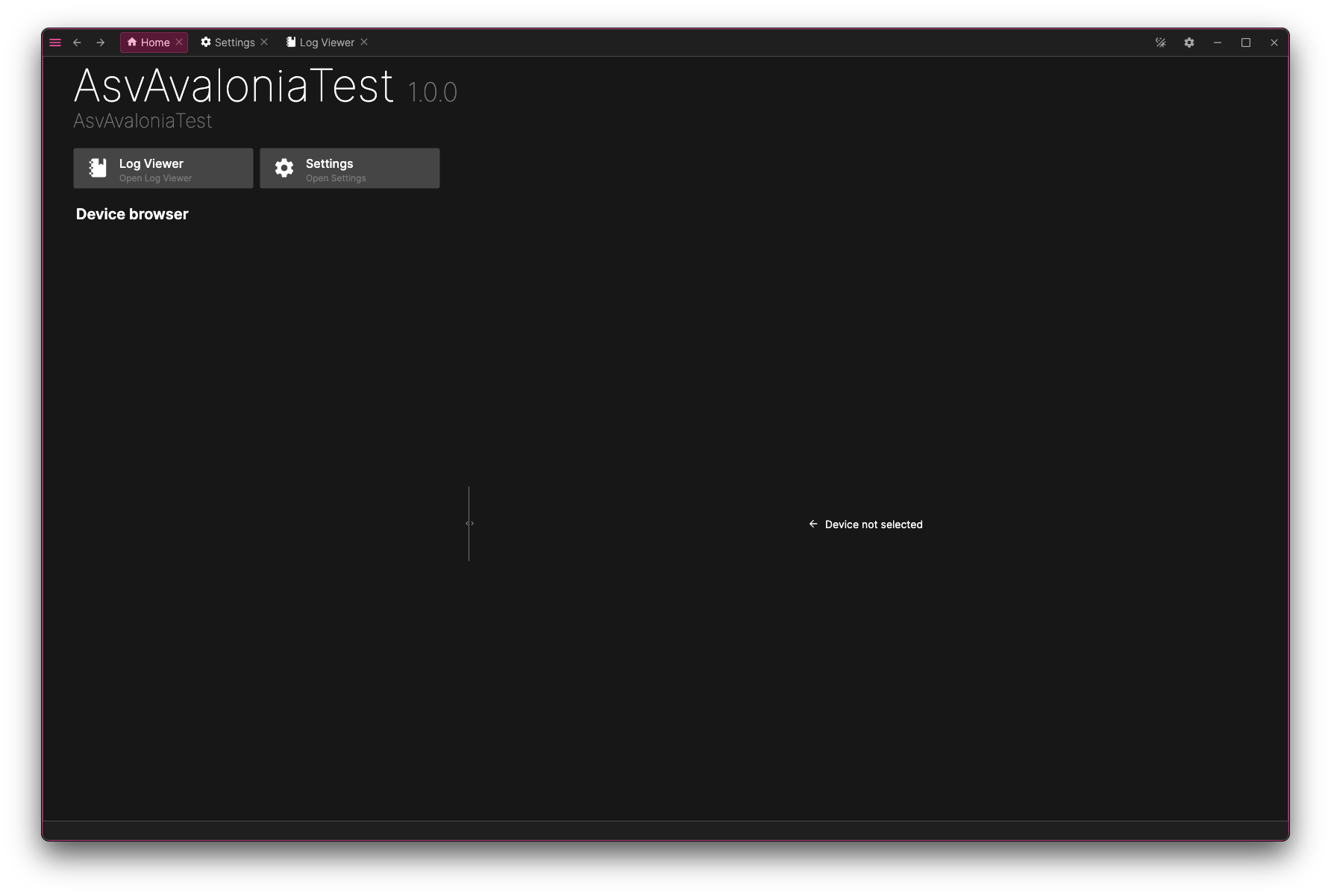
If you want to customize the application (e.g., add new pages or tools), follow the Test Drive guide.