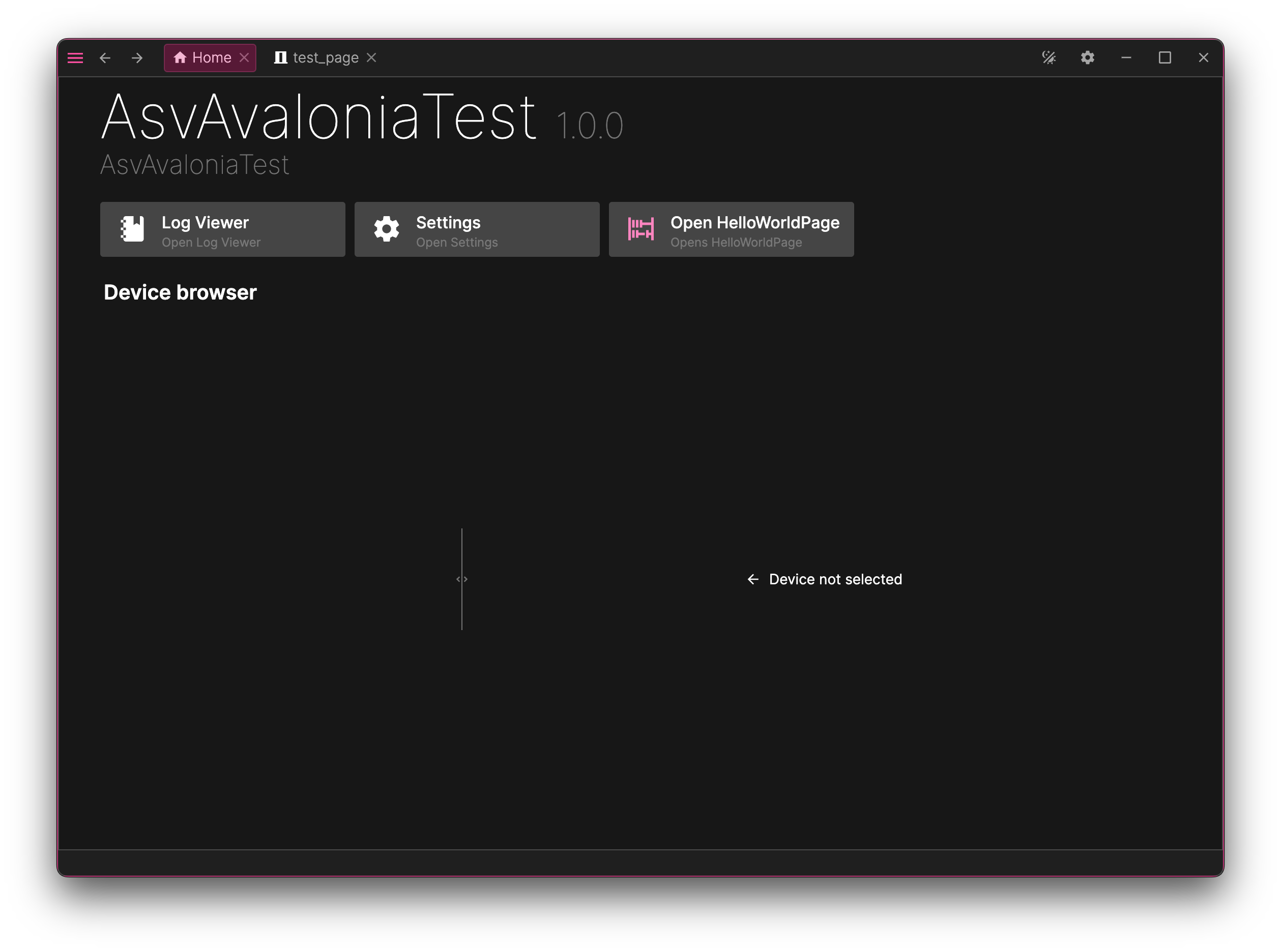
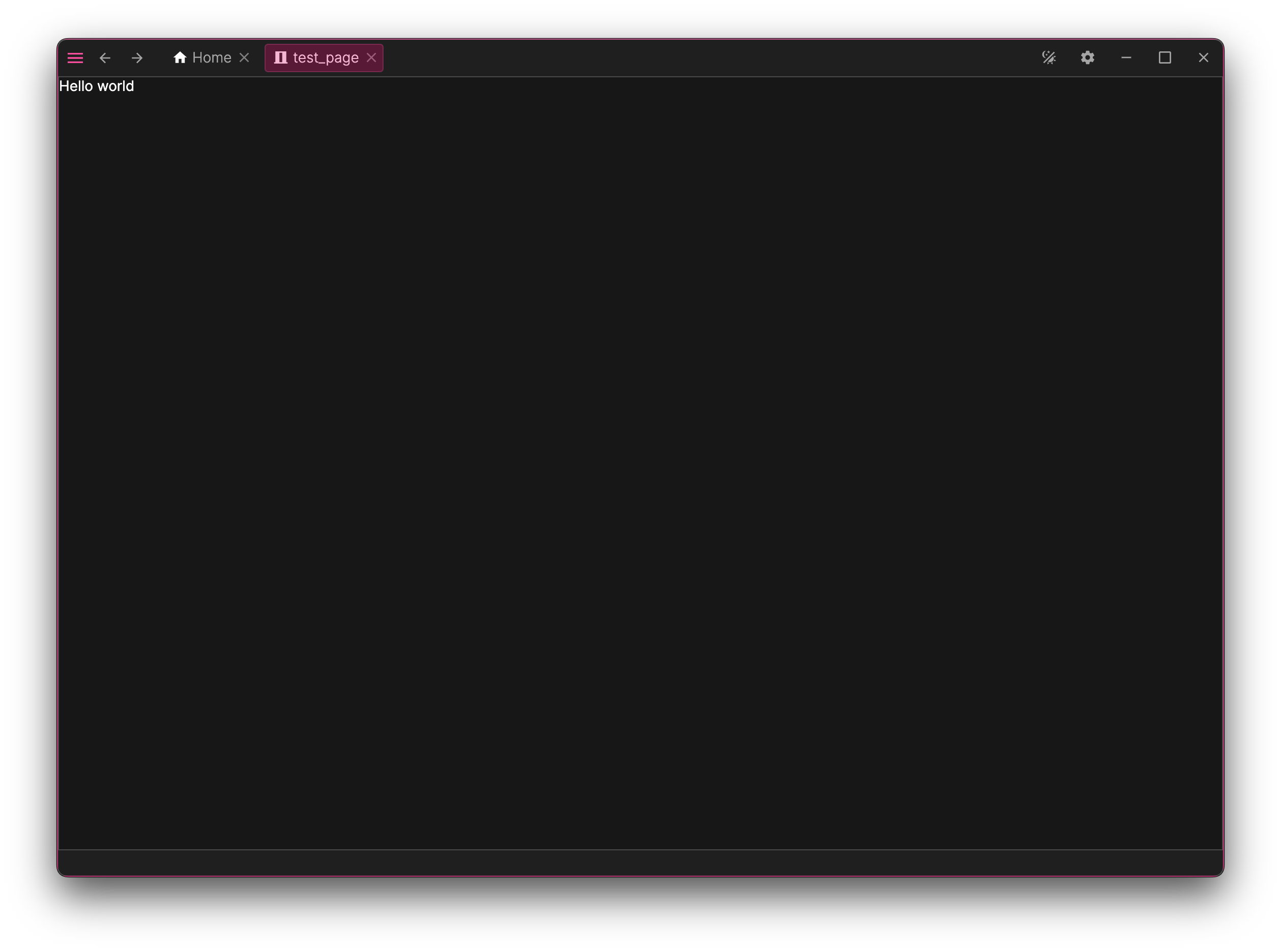
This guide demonstrates how to add a new page to the application.
Creating a page
In Asv.Avalonia, pages are standard Avalonia UserControls paired with a specific View Model.
1. ViewModel for the page
Let's create the view model first. Create a file named HelloWorldPageViewModel.cs:
using System.Collections.Generic;
using Asv.Avalonia;
using Microsoft.Extensions.Logging;
namespace AsvAvaloniaTest;
// The View Model must implement a basic page class (e.g., PageViewModel or TreePageViewModel)
public class HelloWorldPageViewModel : PageViewModel<HelloWorldPageViewModel>
{
// A unique ID for the page, used for routing
public const string PageId = "hello_world_page";
// Dependencies are injected via the constructor from the DI container
public HelloWorldPageViewModel(
IPageContext context,
ILoggerFactory loggerFactory,
IDialogService dialogService,
IExtensionService ext) : base(PageId, context, loggerFactory, dialogService, ext)
{
}
// If this page contains other routable components (e.g., a list with custom VMs), return them here
public override IEnumerable<IViewModel> GetChildren()
{
return [];
}
// This method runs after all extensions have been applied to the page
protected override void AfterLoadExtensions()
{
}
}
IPageContext carries the page infrastructure: navigation arguments and the stores where the page persists its layout and undo history. You don't use it directly here — just pass it to the base class.
2. View for the page
Next, create the new UserControl HelloWorldPage.axaml:
We have created the page, but how do we open it? Any view model can navigate to a page by its ID using the GoTo method. For our page we will wire that call to a tool button on the Home Page.
1. Extending the home page with a new tool
We use an "Extension" to inject our button into the Home Page's tool list. Create HomePageHelloWorldPageExtension.cs:
using Asv.Avalonia;
using Asv.Common;
using Asv.Modeling;
using Material.Icons;
using R3;
namespace AsvAvaloniaTest;
public class HomePageHelloWorldPageExtension : IExtensionFor<IHomePage>
{
// A unique ID for the extension
public const string StaticId = "ext.home.hello-world";
string ISupportId<string>.Id => StaticId;
public void Extend(IHomePage context, CompositeDisposable contextDispose)
{
var action = new ActionViewModel("open-hello-world")
{
Header = "Open HelloWorldPage",
Description = "Opens HelloWorldPage",
Icon = MaterialIconKind.Abacus, // The icon will be used in the tools list
Command = new ReactiveCommand(_ =>
context.GoTo(new NavPath(new NavId(HelloWorldPageViewModel.PageId)))
).DisposeItWith(contextDispose),
}.DisposeItWith(contextDispose);
context.Tools.Add(action);
}
}
When the Home Page is created, the framework applies all extensions registered for IHomePage. Our extension adds an ActionViewModel — a header, a description, an icon, and a command — to the page's tools list. The command calls context.GoTo(...) with the page's ID to open it; GoTo is an extension method available on any view model, so the IHomePage context can call it directly. Everything we create here is tied to contextDispose, so it is disposed together with the page.
2. Register everything in Program.cs
All components (pages, views, extensions) must be registered in the builder chain in Program.cs:
class Program
{
// ...
public static AppBuilder BuildAvaloniaApp()
=> AppBuilder.Configure<App>()
.UsePlatformDetect()
.WithInterFont()
.LogToTrace()
.UseAsv(builder =>
{
builder
.RegisterDefault()
.RegisterDesktopShell();
// Register the View and ViewModel
builder.Pages.Register<HelloWorldPageViewModel, HelloWorldPage>(HelloWorldPageViewModel.PageId);
// Register the extension that adds the tool to the home page
builder.Extensions.Register<IHomePage, HomePageHelloWorldPageExtension>();
});
}
Run the App
You can now run the application. On the Home Page, you will find a new tool button that opens your "Hello World" page.
In the next chapter, we will customize this page by adding reactive properties and buttons.