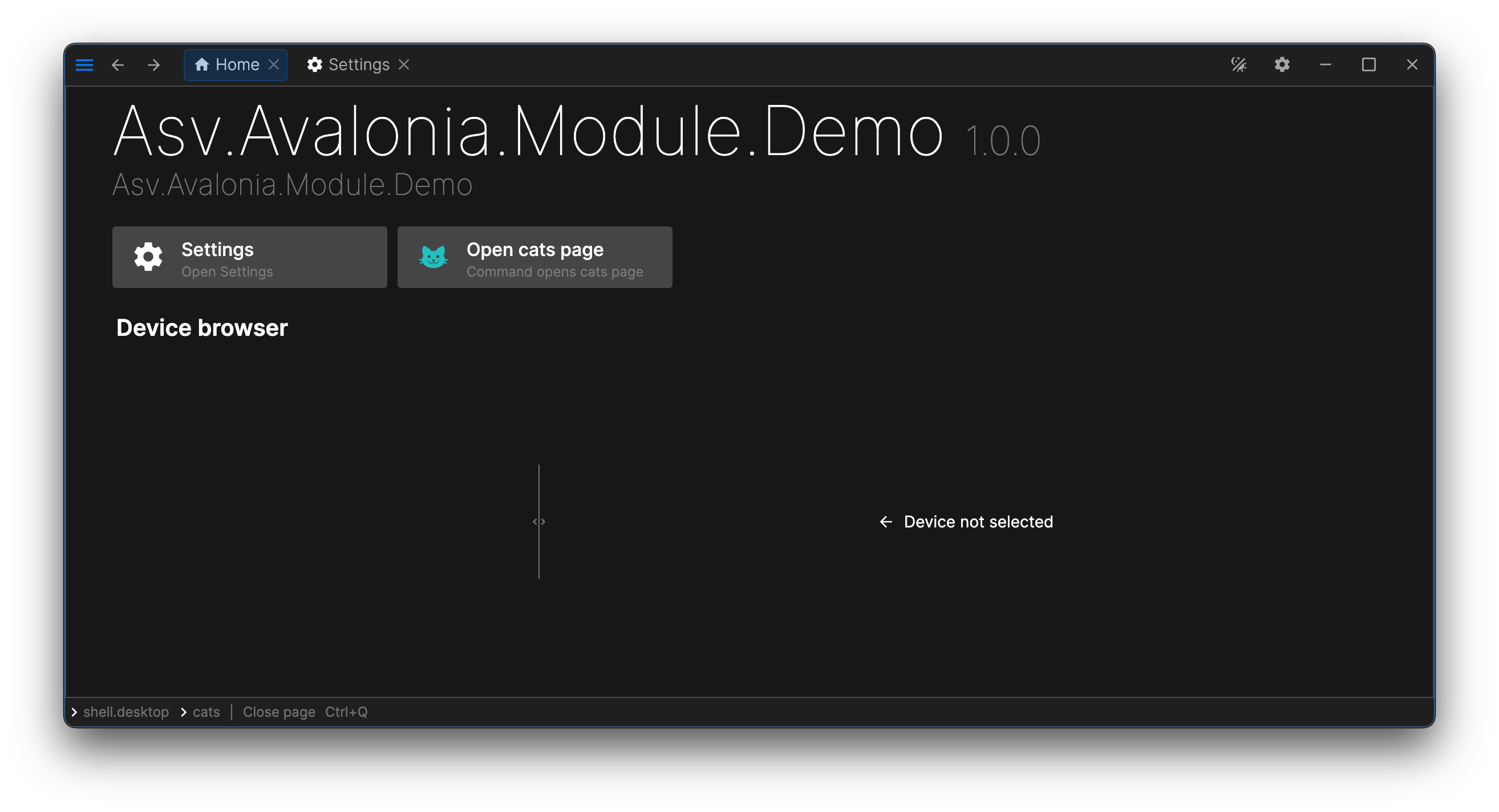
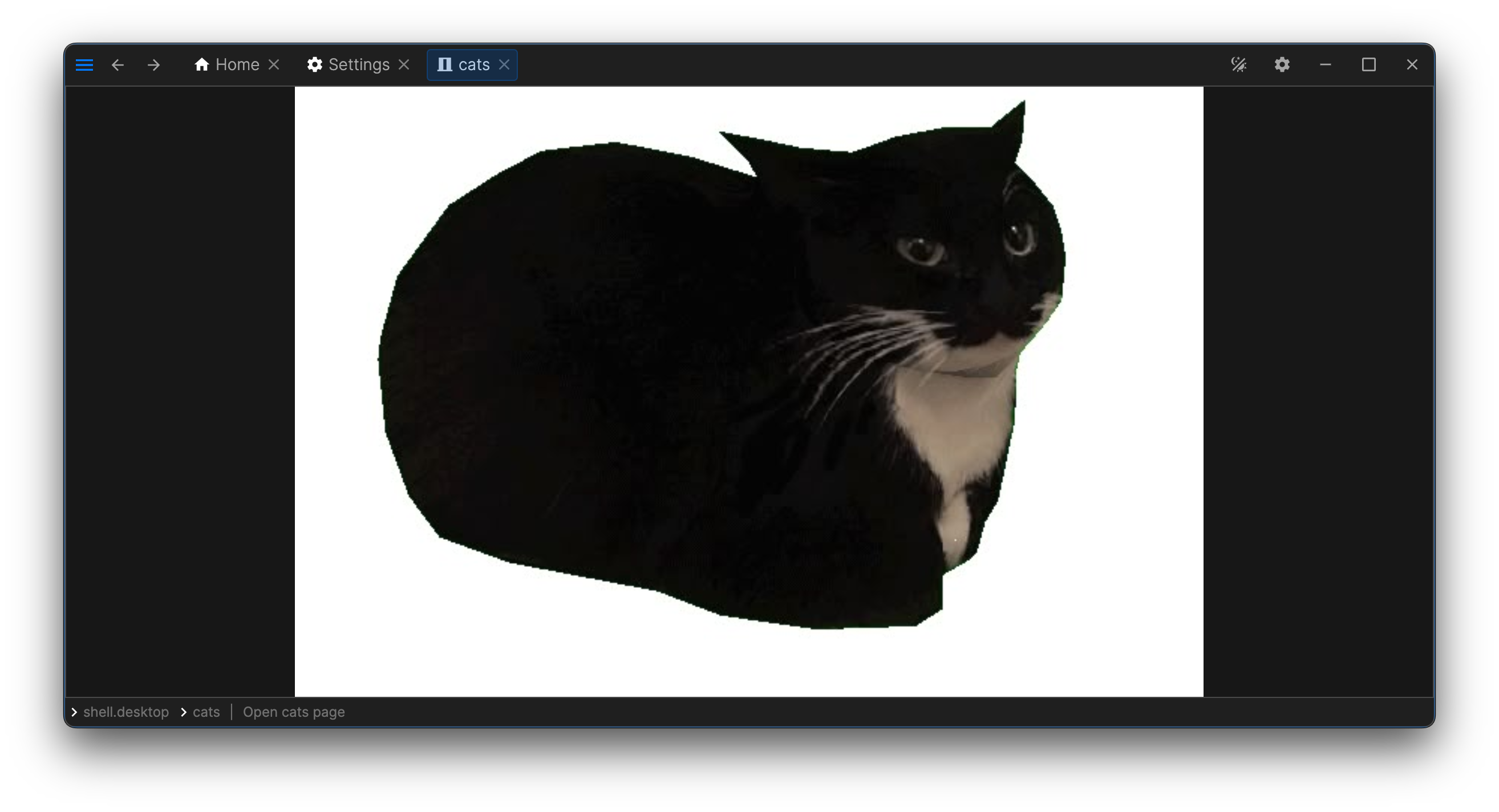
This tutorial shows how to create an Asv.Avalonia module and load it in a desktop demo application. By the end of the guide, the module will add a page with a cat picture and an action on the home page that opens it. You can also check the complete source code.
This guide assumes that you already know how to create a .NET project and install a NuGet package. See Get Started and What is a Module for the initial application setup and module concepts.
Create the module project
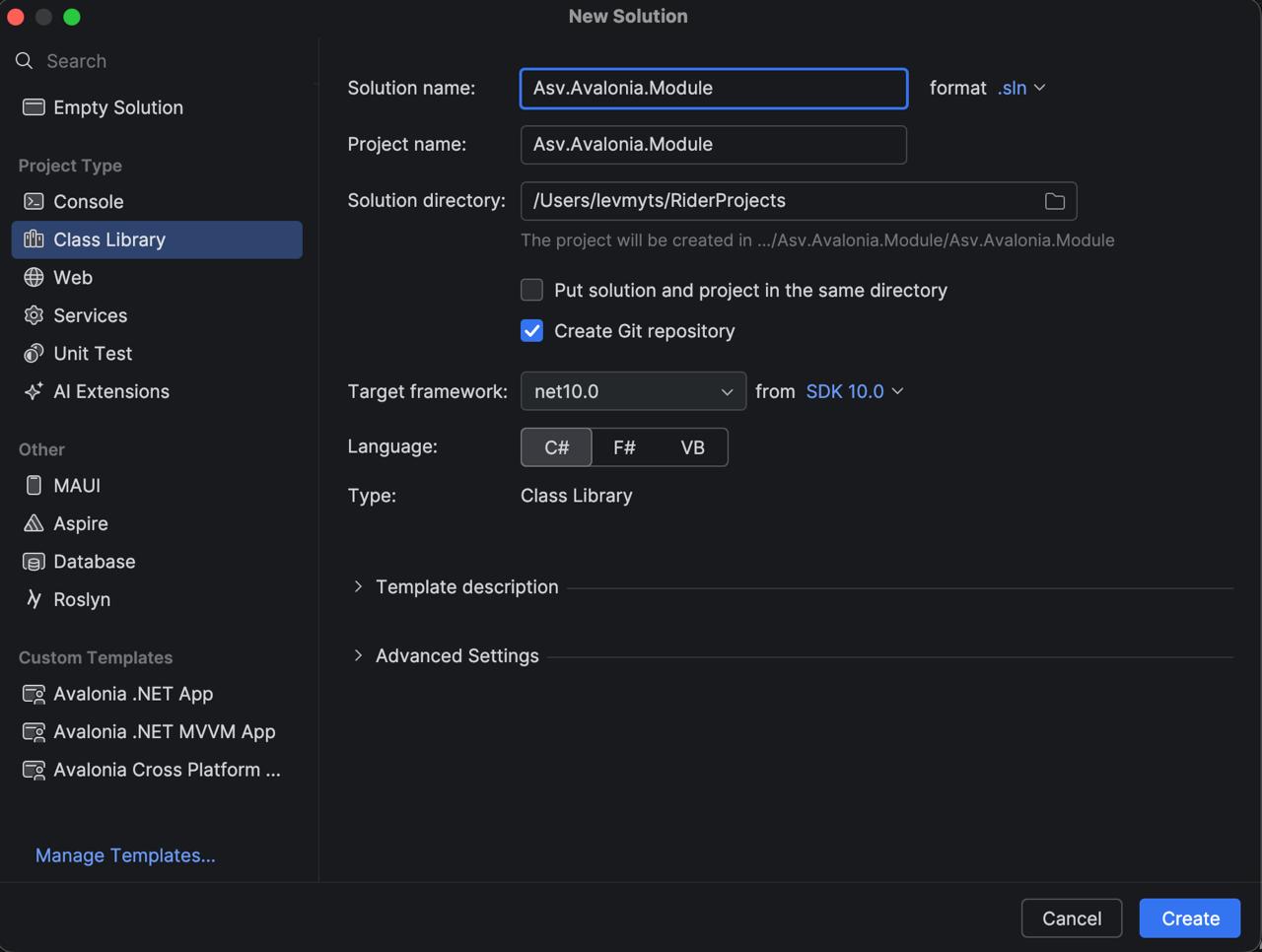
Create a .NET class library named Asv.Avalonia.Module that targets .NET 10.
Add the current Asv.Avalonia package and enable the image files as Avalonia resources:
The sample project currently uses Asv.Avalonia 3.0.0-rc.1. If a newer compatible version is available, keep the module and demo application on the same version.
Create the demo application
Create an Avalonia desktop application named Asv.Avalonia.Module.Demo and add a project reference to the module:
using Avalonia.Markup.Xaml;
namespace Asv.Avalonia.Module.Demo;
public class App : AsvApplication
{
public override void Initialize()
{
AvaloniaXamlLoader.Load(this);
}
}
Configure the desktop shell in Program.cs. The module registration will be added after its registration hierarchy is implemented.
using System;
using System.Threading.Tasks;
using Avalonia;
using Avalonia.Controls;
namespace Asv.Avalonia.Module.Demo;
sealed class Program
{
[STAThread]
public static void Main(string[] args)
{
try
{
BuildAvaloniaApp()
.StartWithClassicDesktopLifetime(args, ShutdownMode.OnMainWindowClose);
AppHost.Instance.StopAsync().GetAwaiter().GetResult();
Task.Factory.StartNew(AppHost.Instance.Dispose).GetAwaiter().GetResult();
}
catch (Exception e)
{
AppHost.HandleApplicationCrash(e);
}
}
public static AppBuilder BuildAvaloniaApp()
=> AppBuilder.Configure<App>()
.UsePlatformDetect()
.With(new Win32PlatformOptions { OverlayPopups = true })
.With(new X11PlatformOptions { OverlayPopups = true, UseDBusFilePicker = false })
.With(new AvaloniaNativePlatformOptions { OverlayPopups = true })
.WithInterFont()
.LogToTrace()
.UseAsv(builder =>
{
builder
.RegisterDefault()
.RegisterDesktopShell();
});
}
Add the Cats page
Create the following folders and files in the module project:
Put a cat image at Assets/cat.jpg, then add the page view model:
using Asv.Common;
using Avalonia.Media;
using Avalonia.Media.Imaging;
using Avalonia.Platform;
using Material.Icons;
using Microsoft.Extensions.Logging;
using Microsoft.Extensions.Logging.Abstractions;
namespace Asv.Avalonia.Module;
public class CatsPageViewModel : PageViewModel<CatsPageViewModel>
{
public const string PageId = "cats";
public const MaterialIconKind PageIcon = MaterialIconKind.Cat;
public const AsvColorKind PageIconColor = AsvColorKind.Info3;
public CatsPageViewModel()
: this(
DesignTime.PageContext,
NullLoggerFactory.Instance,
DesignTime.DialogService,
DesignTime.ExtensionService)
{
DesignTime.ThrowIfNotDesignMode();
}
public CatsPageViewModel(
IPageContext context,
ILoggerFactory loggerFactory,
IDialogService dialogService,
IExtensionService ext)
: base(PageId, context, loggerFactory, dialogService, ext)
{
Header = "Cats";
Icon = PageIcon;
IconColor = PageIconColor;
var stream = AssetLoader
.Open(new Uri("avares://Asv.Avalonia.Module/Assets/cat.jpg"))
.DisposeItWith(Disposable);
var defaultPicture = new Bitmap(stream).DisposeItWith(Disposable);
SelectedImage = defaultPicture;
}
public IImage? SelectedImage
{
get;
private init => SetField(ref field, value);
}
public override IEnumerable<IViewModel> GetChildren()
{
return [];
}
protected override void AfterLoadExtensions()
{
// No page extensions need post-load processing.
}
}
The design-time constructor uses DesignTime.PageContext and NullLoggerFactory. The runtime constructor receives IPageContext from a dependency injection and passes it to PageViewModel.
using Avalonia.Controls;
namespace Asv.Avalonia.Module;
public partial class CatsPageView : UserControl
{
public CatsPageView()
{
InitializeComponent();
}
}
Add an action to the home page
Create HomePageCatsPageExtension.cs in Shell/Pages/Cats. The action navigates directly to the page through IHomePage; a separate open-page command is not required.
using Asv.Common;
using Asv.Modeling;
using R3;
namespace Asv.Avalonia.Module;
public class HomePageCatsPageExtension : IExtensionFor<IHomePage>
{
public const string StaticId = "ext.home.cats";
public string Id => StaticId;
public void Extend(IHomePage context, CompositeDisposable contextDispose)
{
var action = new ActionViewModel("open-cats")
{
Header = "Open cats page",
Description = "Opens the cats page",
Icon = CatsPageViewModel.PageIcon,
IconColor = CatsPageViewModel.PageIconColor,
Command = new ReactiveCommand(async (_, _) =>
await context.GoTo(new NavPath(new NavId(CatsPageViewModel.PageId)))
).DisposeItWith(contextDispose),
}.DisposeItWith(contextDispose);
context.Tools.Add(action);
}
}
Build the registration hierarchy
The current module pattern uses small registration builders that mirror the feature folders. Each builder exposes AppBuilder through IDependencyBuilder and owns the default registrations for its scope.
First, register the Cats page and its home page extension in Shell/Pages/Cats/CatsRegistrations.cs:
namespace Asv.Avalonia.Module;
public static class CatsRegistrations
{
extension(PagesRegistrations.Builder builder)
{
public PagesRegistrations.Builder RegisterCats()
{
builder.AppBuilder.Pages.Register<CatsPageViewModel, CatsPageView>(
CatsPageViewModel.PageId
);
builder.AppBuilder.Extensions.Register<IHomePage, HomePageCatsPageExtension>();
return builder;
}
}
}
Create Shell/Pages/PagesRegistrations.cs:
using Microsoft.Extensions.Hosting;
namespace Asv.Avalonia.Module;
public static class PagesRegistrations
{
extension(ShellRegistrations.Builder builder)
{
public Builder Pages => new(builder);
public ShellRegistrations.Builder RegisterPages(Action<Builder>? configure = null)
{
configure ??= b => b.RegisterDefault();
configure.Invoke(new Builder(builder));
return builder;
}
}
public class Builder(ShellRegistrations.Builder builder) : IDependencyBuilder
{
public IHostApplicationBuilder AppBuilder => builder.AppBuilder;
public Builder RegisterDefault()
{
this.RegisterCats();
return this;
}
}
}
Create Shell/ShellRegistrations.cs:
using Microsoft.Extensions.Hosting;
namespace Asv.Avalonia.Module;
public static class ShellRegistrations
{
extension(ModuleModuleRegistrations.Builder builder)
{
public Builder Shell => new(builder);
public ModuleModuleRegistrations.Builder RegisterShell(Action<Builder>? configure = null)
{
configure ??= b => b.RegisterDefault();
configure.Invoke(new Builder(builder));
return builder;
}
}
public class Builder(ModuleModuleRegistrations.Builder builder) : IDependencyBuilder
{
public IHostApplicationBuilder AppBuilder => builder.AppBuilder;
public Builder RegisterDefault()
{
this.RegisterPages();
return this;
}
}
}
Finally, create ModuleModuleRegistrations.cs at the project root:
using Microsoft.Extensions.Hosting;
namespace Asv.Avalonia.Module;
public static class ModuleModuleRegistrations
{
extension(IHostApplicationBuilder builder)
{
public Builder ModuleModule => new(builder);
public IHostApplicationBuilder RegisterModuleModule(Action<Builder>? configure = null)
{
configure ??= module => module.RegisterDefault();
configure(new Builder(builder));
return builder;
}
}
public class Builder(IHostApplicationBuilder builder) : IDependencyBuilder
{
public IHostApplicationBuilder AppBuilder => builder;
public Builder RegisterDefault()
{
this.RegisterShell();
return this;
}
}
}
Load the module
Add RegisterModuleModule() after the framework and desktop shell registrations in the demo application's Program.cs: